Go to Scheduling > Edit Schedule > Date View (or Month View)
Right click on the assignment
Hover over Replace With.
Menu options include:
Today Only, Date Range, and For the Week.
To change one day, hover over Today Only and a list of candidates controlled through the role will appear.
Click on the staff member to change.
To change the entire week, hover over For the Week and a list of candidates controlled through the role will appear.
Click on the staff member to change.
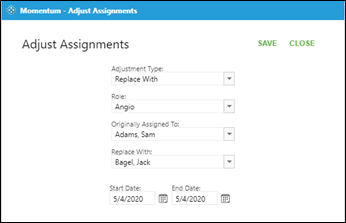
To change a specific date range, click on Date Range.
Click on the Replace With drop down arrow and choose the new staff member.
Adjust the Start Date and End Date.
Click on Save.