
Go to Setup > Staff Setup > Contracts
Click on the existing contract needing updated to open page
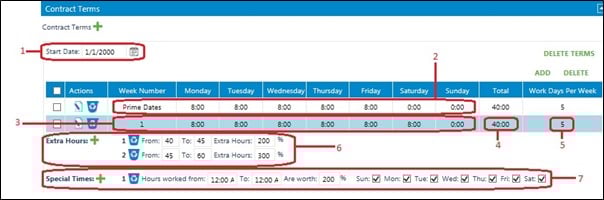
1: The starting date of the existing contract
2: Total hours contracted to be performed when assigned prime dates (holidays)
3: Total hours contracted to be performed when assigned regular weekly hours
4: Total hours contracted to be performed on one week
5: Total days contracted to be performed on one week
6: Increase conditions in case of extra hours. Here, if this person works between 0 and 5 extra hours, it will be increased by 200%
7: Special Times used to define special time frame during the day and define the value of the hours in this time frame.
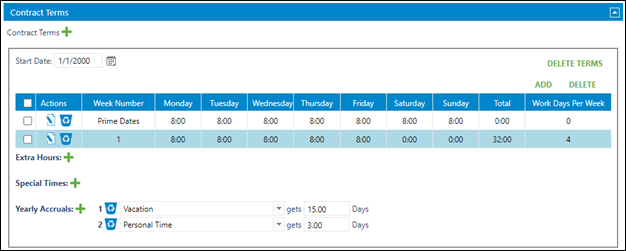
Yearly accrual numbers are associated with time off roles.
Update number of contracted days by changing the existing time off roles listed on contact.
To add new time off roles with contracted number of days, click on the green plus sign, choose time off role and add number of contract days.
Click on Save when complete.