
Building a Schedule
Go to Scheduling > Build Queue.
Click on Manage Schedule in the upper right corner.
Select the desired start and end date of the new schedule.
Click on Layer Group and choose the layer group in which to build.
Click on Start Layer and choose the first layer to build.
Click on End Layer and choose the last layer to build.
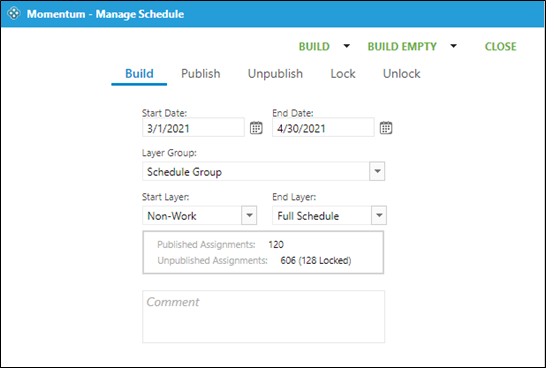
Note – If no start and end layer is chosen then all layers in the layer group will be built.
Click on the green Build button to start the build. A pop-up window will confirm that the schedule will be built.
Click on the green Close to close the manage schedule window.
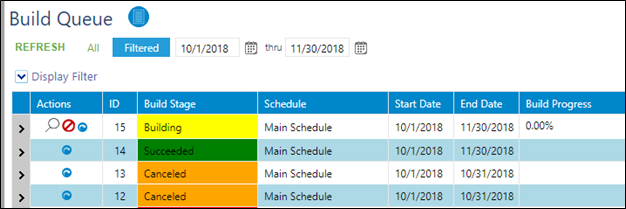
The queue will show the progress of the build. Once complete it will turn green and be labeled as Succeeded.
Building an Empty Schedule
You have the possibility to select Build Empty.
Momentum will create all assignments defined in the demand without trying to fill them.
It will allow you to pre-populate schedule before locking it and rebuilding it for example.