
Locking a Schedule
Examples of when locking schedules may be required:
Assignments for holidays are manually assigned prior to schedule build.
Layer previously built needs to be rerun and some of the assignments need to remain unchanged.
Locking Multiple Assignments in Date or Month View
Go to Scheduling > Edit View > Date or Month View.
Click on the lock icon.
Choose a start date and end date of the schedule needing locked.
A window will appear with the following choices of locking options.
Lock by Role
Lock by Role Group
Lock by Role Layer
Lock by Staff
Lock by Staff Group
Lock by Location
Once all options are chosen click on the green Lock button.
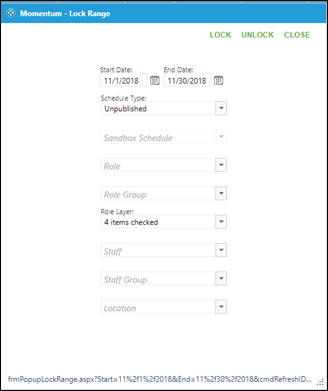
Note - If assignments were previously locked and need to be rebuilt this same method works for unlocking by clicking on the green Unlock button.
Locking Multiple Assignments in List View
Go to Scheduling > Edit Schedule > List View.
Use filters to show the assignments that need to be locked.
Select assignments by clicking on the empty box on the left side of the assignment.
Click on the green Lock button.
Assignments can be locked individually directly on the schedule.
Go to Scheduling > Edit Schedule > Date View or Month View
Right click on an assignment and a pop-up menu will appear.
Click on Lock Assignment.
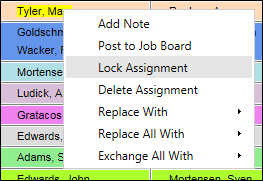
Note – Assignments may be unlocked using the same method. If an assignment has previously been locked the pop-up menu will list Unlock Assignment.
Locking Single Assignments in Date or Month View
Assignments may be locked when manually creating an assignment using the assignment window.
Go to Scheduling > Edit View > Date View or Month View
Click on the green plus sign to create new assignment.
Click on the blue empty lock icon in the upper left corner of the window prior to saving.
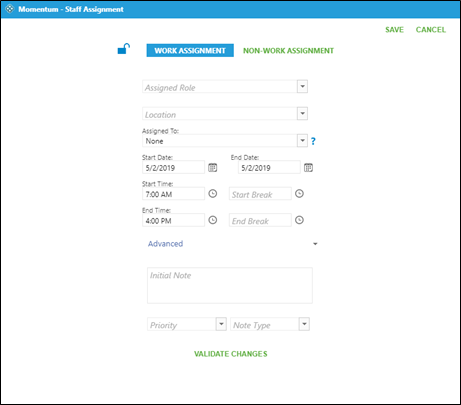
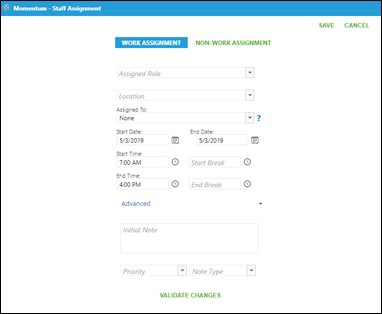
If no lock is present, it is already in production and locked. The only option is to delete the assignment.
Review Locked or Unlocked Assignments in Display Filter
Filters can be used to display locked or unlocked assignments.
Go to Scheduling > Edit Schedule > Date View or Month View
Click on Display Filter drop down arrow.
Click on Status drop down arrow.
Choose Lock or Unlocked depending on which view is needed.
Click on Refresh.
