Locking a Schedule
Examples of when locking schedules may be required:
-
Assignments for holidays are manually assigned prior to schedule build.
-
Layer previously built needs to be rerun and some of the assignments need to remain unchanged.
Locking Single Assignment in New Date View
Go to Scheduling > View Schedule > Date View (new).
Right click on assignment and click on Lock Assignment.
Locking Multiple Assignments in New Date View
Go to Scheduling > View Schedule > Date View (new).
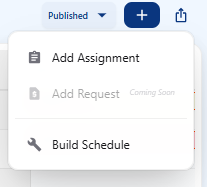
Click on the plus sign icon in the upper right corner.
Click on Build Schedule
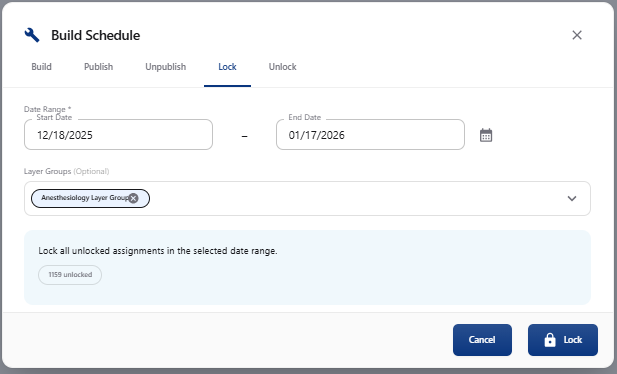
Click on Lock tab.
Select the desired start and end date of the schedule. Click on the calendar icon for popup.
Click on Layer Group and choose the layer group in which to lock.
Click on Start Layer and choose the first layer to lock.
Click on End Layer and choose the last layer to lock.
Click on Lock button.
Locking Single Assignments in New Date View
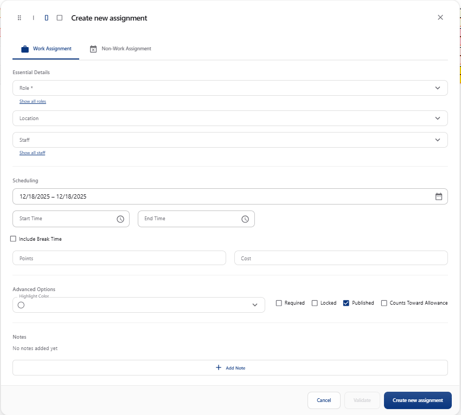
Assignments may be locked when manually creating an assignment using the assignment window.
Go to Scheduling > View Schedule > Date View (new).
Right click on an empty cell to create new assignment.
Click on the empty Locked box in the lower corner of the window prior to saving.