
There are several major differences between these two types of schedules.
Published schedules:
Can be viewed on the web and mobile apps by all providers and staff who have access.
Changes will generate notifications if in use by the site.
Can be viewed on read only links.
Will not change if schedule is rebuilt.
Unpublished schedules:
Can only be viewed by administrators.
Changes will never generate notifications.
Cannot be viewed on read only links.
Can be changed with a schedule rebuild if not locked (see How to Lock Assignments).
To publish a schedule
Go to Scheduling > Build Queue.
Click on Manage Schedule in the upper right corner.
Select the desired start and end date of the schedule.
Click on Layer Group and choose the layer group in which to published.
Click on Start Layer and choose the first layer to published.
Click on End Layer and choose the last layer to published.
Note – If no start and end layer is chosen then all layers in the layer group will be published.
Click on the grey Publish tab to the right of Build.
Click on the green Publish button.
Confirm OK at prompt to publish assignments.
Click on the green Close to close the manage schedule window.
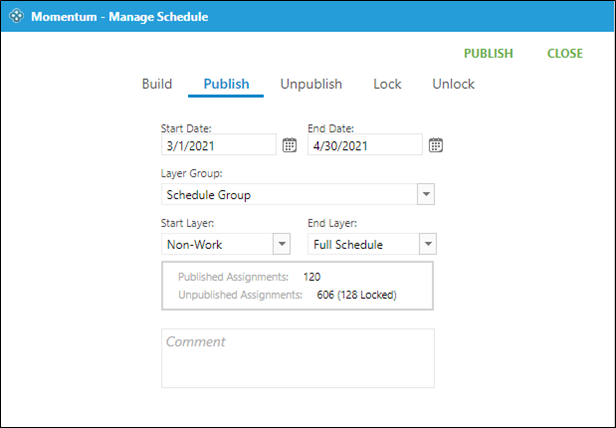
Note – Under the Start/End layers there is data related to Published versus Unpublished assignments. Information regarding locked assignments is also listed.