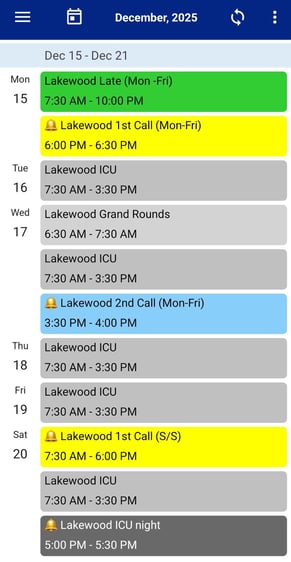
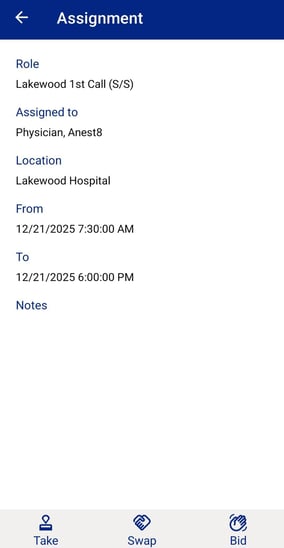
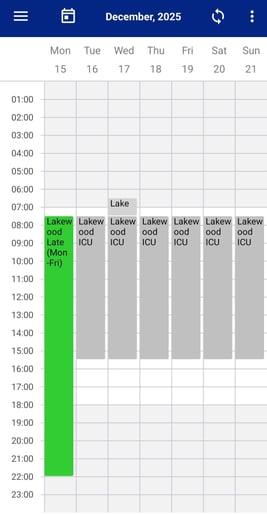
From the My Schedule tab you can select any of your assignments and click on them. Once you have opened the assignment window you will be presented with the option to
“post”
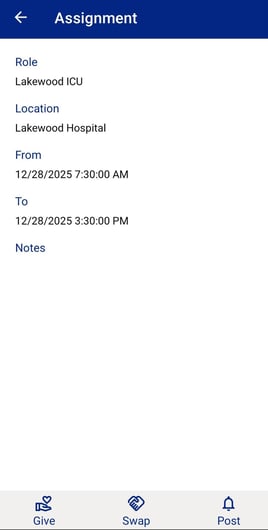
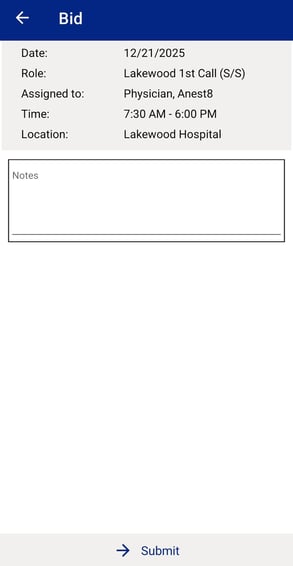
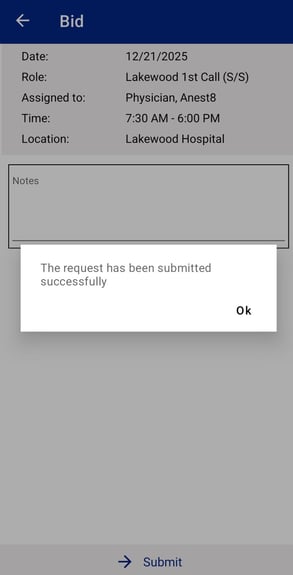
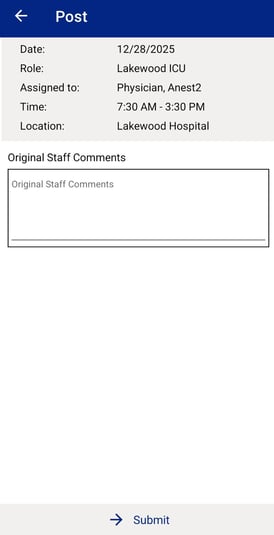
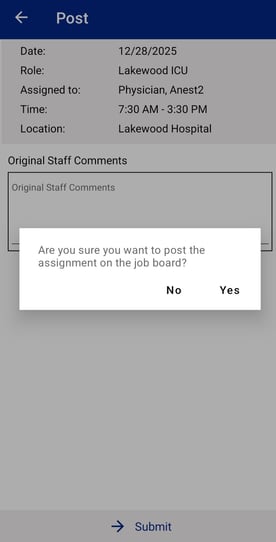
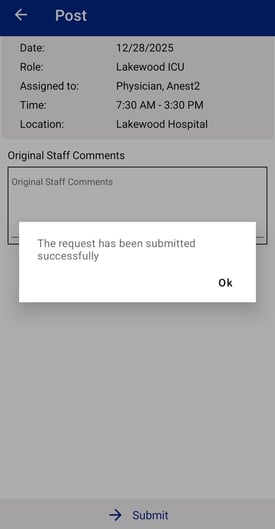
After clicking on “post” you are presented with the details of the assignment, from here you can leave a note for your schedule administrator and then click “submit”. Your assignment is now posted to the job board!
*Note- if nobody submits a big to cover the shift, the original staff member remains schedule to work the assignment.
Bidding on Assignments
To “bid” on available assignments you will need to navigate to the my schedule agenda view portion on the Mobile application. Once arriving to the agenda view, you will notice some assignments will have a “Bell Icon” next them. This will alert you to the fact that those assignments are available to be worked and already posted to the job board.
You can click on the assignment with the “Bell Icon” and when the popup opens you can select “bid” from the bottom of the screen, leave your administrator a note if you would like to and submit the bod for the shift.
You will be notified if your administrator approves you to work that shift.