
About Time Off Summary
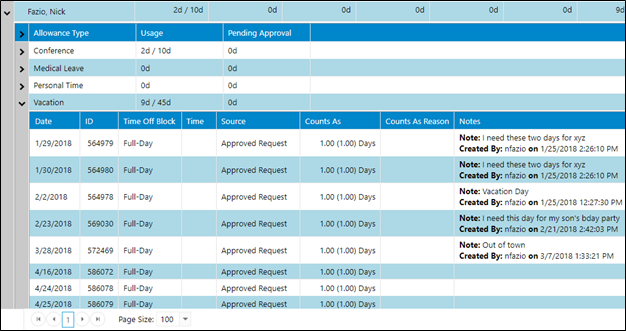
The Time Off Summary displays time-off with respect to available allocations set in the staff contracts. Only time off roles are visible on the report. Details for particular staff member(s), including dates and how they count towards allocations, are available by clicking on the > symbol on the left of the report.
Totals are displayed as the sum of all time off roles for the time period chosen, or as the sum compared to the allotment contained in the staff contract. If the staff has no allotment set in a contract only the sum is displayed. If there is an allotment, the first time is the sum of all scheduled and approved requested time off with the second number indicating the allotment.
Yearly – This option will display by full year and multiple years can be chosen
Dates – This option will display start and end date icons to manually set a date range for the report
Details are available by clicking the > icon to the left of a staff name and time off role.
The expanded report includes the following information:
Date – Date of individual time off assignment
ID – Database ID (disregard)
Time Off Block – The time off role being assigned
Time – Start and end time for time off assignment
Source – Request or published schedule
Counts As – How many days, hours, etc. are being counted
Counts As Reason – Explanation of how the assignment is being counted
Notes – Any notes initially attached to the assignment
Time Off Summary Filtering
Time Off Summary report display filter contains the following drop-down options for setting up views:
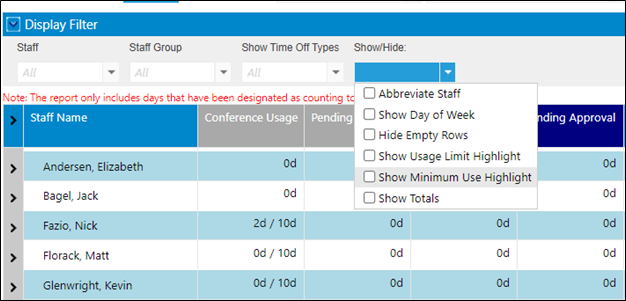
- Staff – Choose specific staff or leave all unchecked for all staff
- Staff Group – Choose specific staff groups or leave unchecked for all staff groups
- Show Time Off Types – Choose specific role/s or leave all unchecked for all roles
- Hide/Show – various options
When choosing Show Usage Limit Highlight a new option on the display bar will appear named High Use Percentage.
When choosing Show Minimum Use Highlight a new option on the display bar will appear named Low Use Percentage.
These options will highlight high use and low use based on the percentages entered.