
Adding notes to new request:
Go to Scheduling > Staff Request > Request Calendar
Navigate the date range required using the calendar start and end date pop-ups.
Click on the green plus sign on the first day of the request.
Choose Add Request.
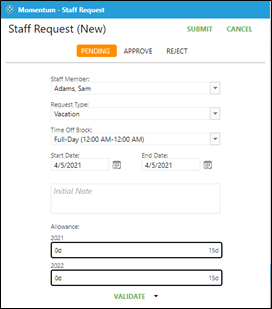
Click on the Staff member drop down (choose staff by scrolling or typing to narrow list).
Click on the Request Type drop down and choose either time off role, work on specific dates or don’t work on specific dates (choose scrolling or typing to narrow list).
Choose End Date if request if for more than one day.
Click in free text box marked Initial Note and type note.
Click on Submit or Approve (submit will leave the request in pending status for future approval).
Adding note to existing request:
Go to Scheduling > Staff Request > Request Calendar
Navigate the date range required using the calendar start and end date pop-ups.
Right click on the desired request and choose Add Note.
Choose Priority (red, yellow or green).
Choose Note Type:
Everyone, it will be viewable by all users.
Me Only, you will be the only one to see the note.
Admin Only, only the staff indicated as administrator will see it.
Me and Admin Only, only the administrators and you will be able to see this note.
Click on Add.
Click on Cancel (will keep the note and close the window).