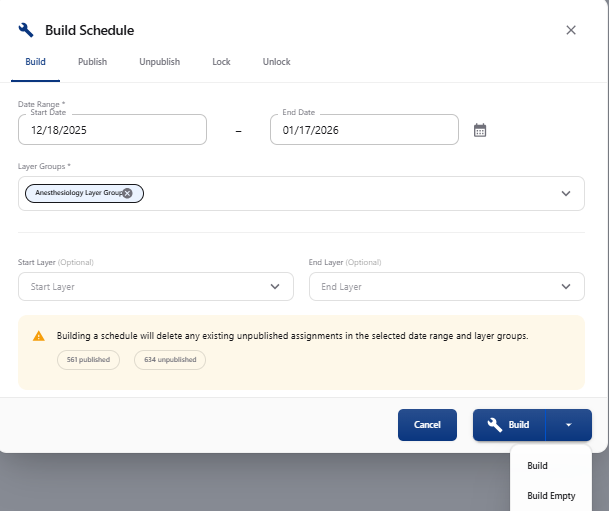
Building a Schedule
Go to Scheduling > View Schedule > Date View (new).
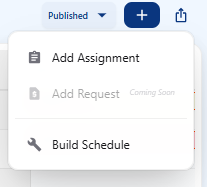
Click on the plus sign icon in the upper right corner.
Click on Build Schedule
Select the desired start and end date of the new schedule. Click on the calendar icon for popup.
Click on Layer Group and choose the layer group in which to build.
Click on Start Layer and choose the first layer to build.
Click on End Layer and choose the last layer to build.
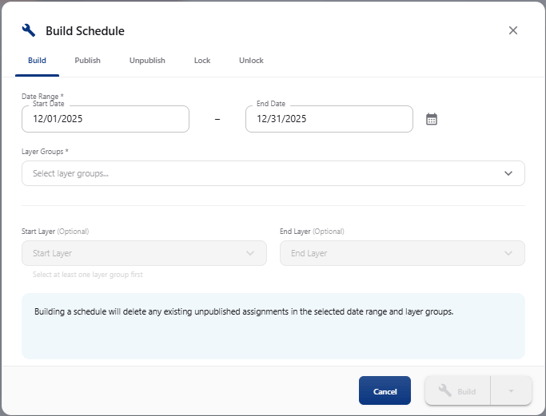
Note – If no start and end layer is chosen then all layers in the layer group will be built.
Click on the Build button to start the build. A pop-up window will confirm that the schedule will be built down in the lower right corner.
Once the build has started a process indicator will appear to the left of the plus sign.

Once complete it will turn green Done will appear then disappear.
Building an Empty Schedule
You have the possibility to select Build Empty.
Click on the dropdown next to Build and choose Build Empty.