
When set to auto, drag and drop functionality will trigger validation to run and populate a modal with any validation conflicts.
When set to manual, drag and drop will trigger a modal that asks to either validate or apply changes. This basically means users can get notified to run validations but not run validation every time.
In the lower left corner of the footer the Validation icon will allow global validation of all assignments on the schedule.

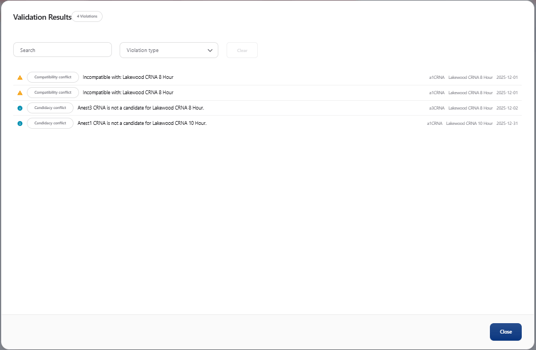
After running validation on the schedule a list of conflicts will be shown. Clicking on the drop down arrow will expand the data with information regarding the conflict.
Important: Rule validation in the new date view is being improved. If you notice inconsistencies in rule validation, we recommend:
- Reporting the issue to us by clicking the contact support button
 in Momentum. The more information you share, the faster we can resolve any issues. Please include:
- A summary of the issue
- Steps to reproduce it
- What you expected instead
- A screenshot
Solution: Use the classic date view to perform your validation if issues occur.