
Go to Scheduling < View Schedule < Date View (new)
Right click on the first assignment needing cloned and choose Add to Selection.
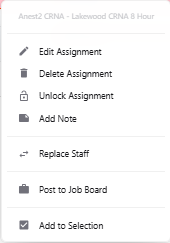
This will highlight the assignment with purple, indicating it is chosen.
Multiple assignments can be chosen and each one will also highlight with purple.
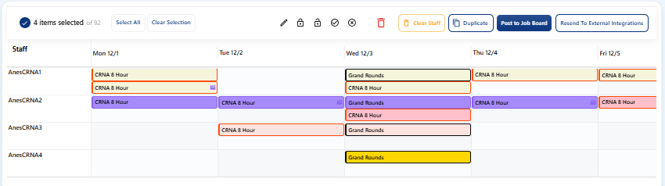
Once select is activated a new menu bar will appear above the schedule.
Click on Duplicate button.
There are a number of options to choose. Options include: To include filled assignments, empty assignments, and notes attached to current assignments.
Advanced options include to delete current assignments that overlap the new duplicated assignments, to lock by default or unlock, and options to add new duplicated assignments to published or unpublished schedules.
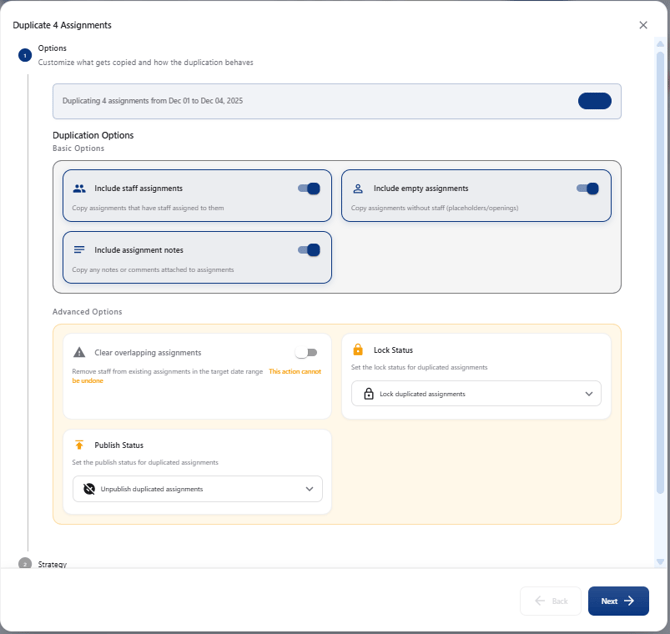
Click next to proceed to choose single copies or patterns. Single copies will create one copy of each of the assignments chosen by multiselect.
For single copy, choose Single Copy.
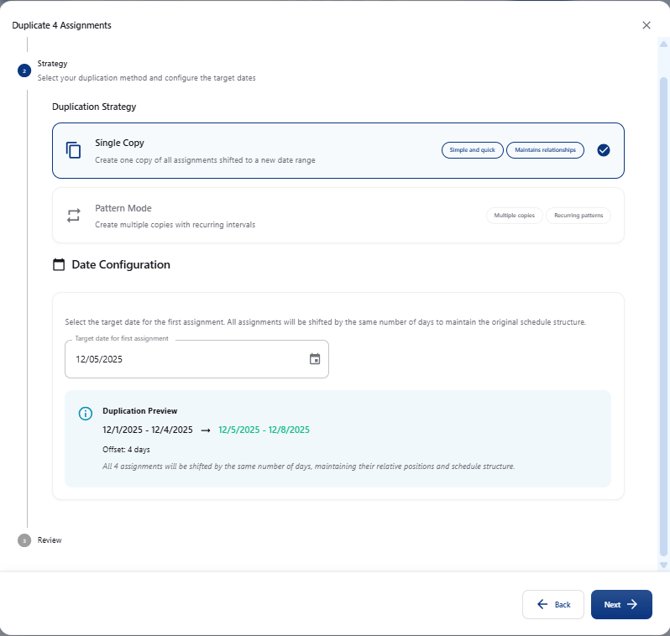
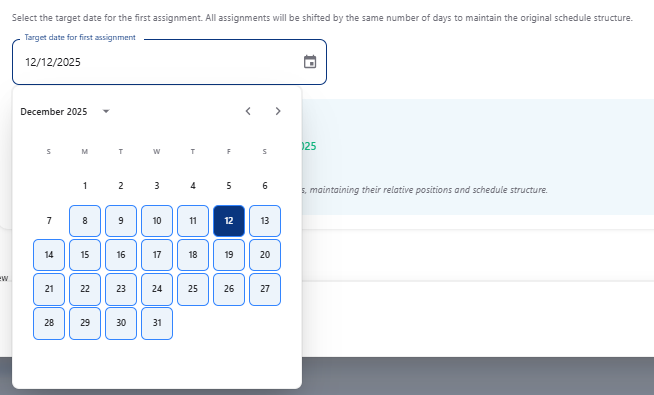
Choose the start date in which you want the first assignment to be copied.
Click on Next.
Review the chosen options and click on Duplicate Assignments.
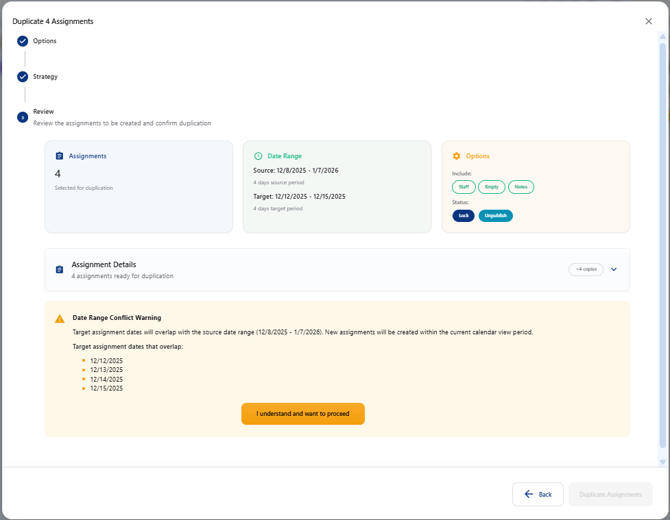
Verify that the assignments have been copied.
For pattern copy, choose Pattern Mode.
With pattern mode the date configuration allows choices on when the pattern repeats and the number of copies to be made. For example, the chosen options are to start on a Monday, repeat every week, for a total of two weeks.
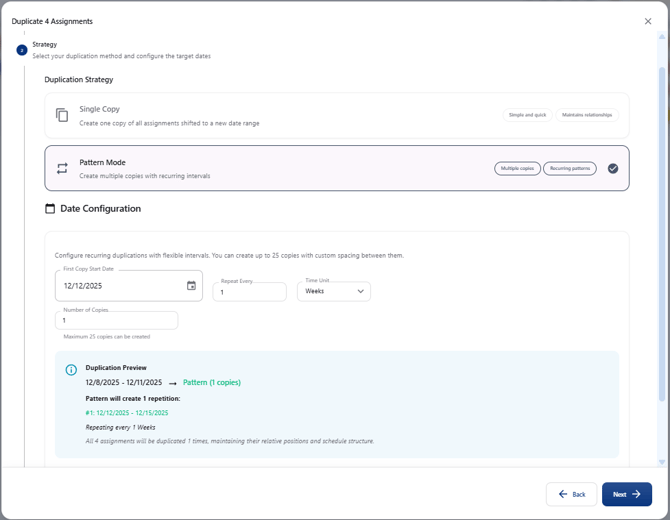
Review the chosen options and click on Duplicate Assignments.
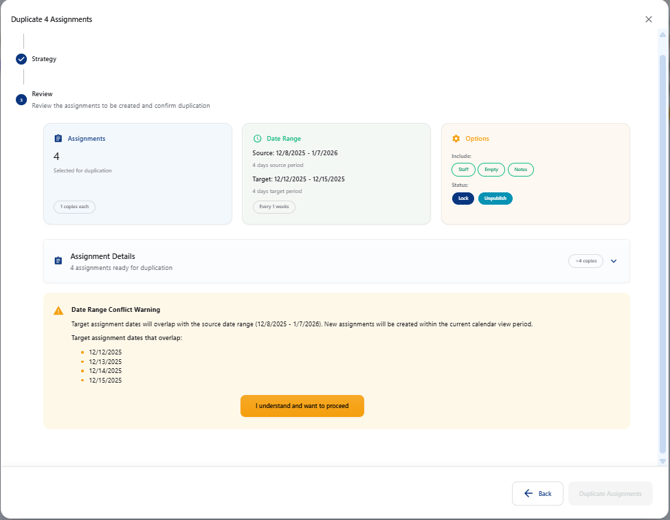
Verify that the assignments have been copied.